5.4.3 Log
From the Window menu, you can open the Log window, which keeps track of which messages SpamSieve has filtered, which messages you’ve trained it with, changes that you’ve made to the rules, any errors that have occurred, and more. The log is the first place to look to understand what SpamSieve is doing or to troubleshoot a problem. The Sending in an Error Report section describes how you can e-mail part of your log to spamsieve@c-command.com if you need help interpreting it. You can also Copy/Paste individual log entries from the list.
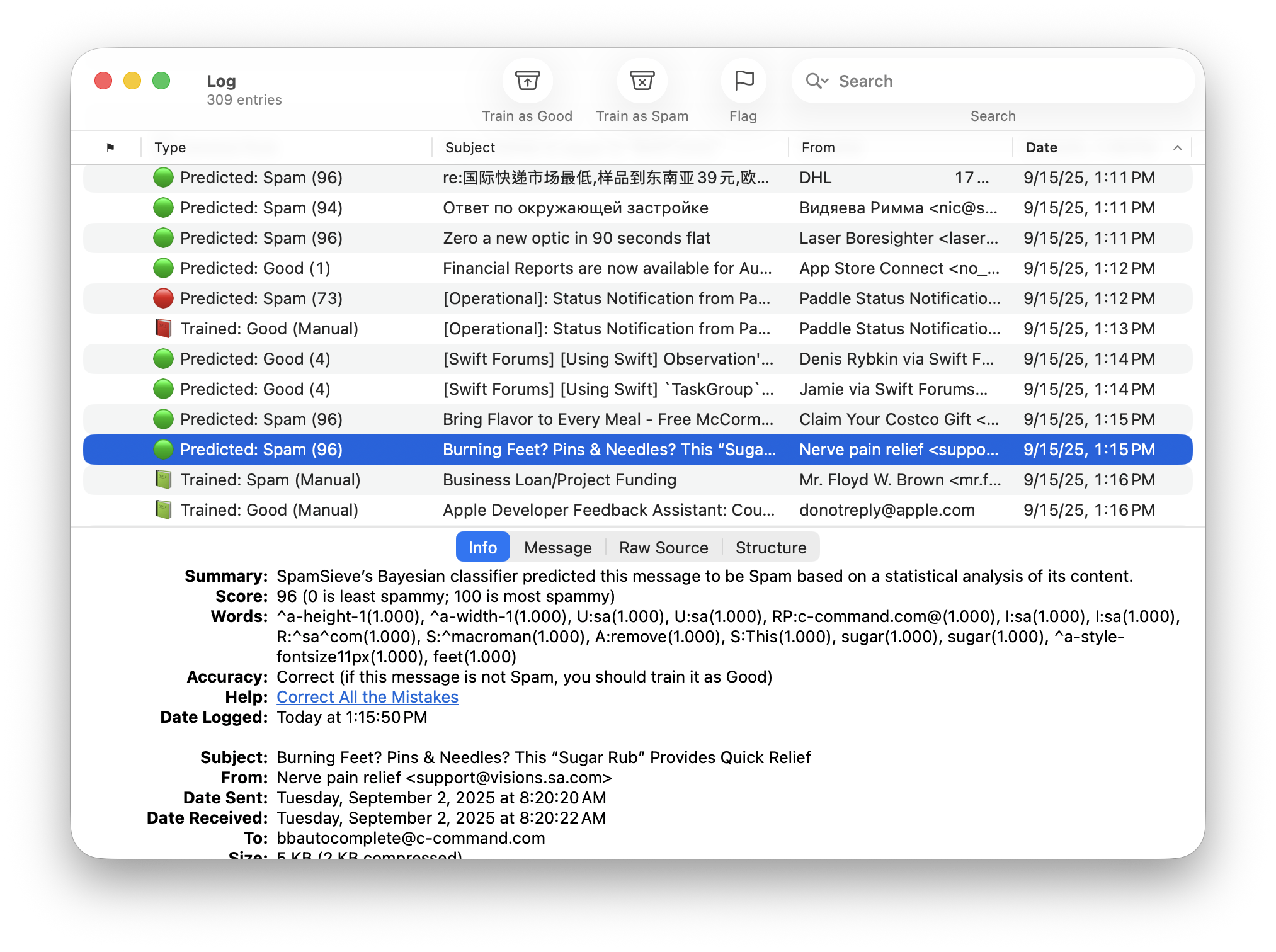
For information about searching the log, please see the Searching section.
Log Table Columns
The following columns are shown:
- ⚑
- Whether the log entry has been marked as flagged.
- Type
- An icon and a short description of what kind of log entry this is.
- Subject
- The message’s subject, or a short summary for a non-message log entry.
- From
- The message’s sender, or information about the source of a non-message log entry.
- Date
- When SpamSieve performed whatever operation led to the log entry. In other words, this might show the date that SpamSieve classified a message (not the date when the message was sent or received).
Unlike with other windows in SpamSieve, the sorting in the Log window is not configurable. For performance reasons, it is always sorted by date, with newer log entries at the bottom. If a new log entry is recorded while you have a log entry selected, SpamSieve will continue showing the selected log entry. If no log entry is selected—you can deselect by Command-clicking—when a new log entry is recorded, SpamSieve will auto-scroll the window to the bottom so that you can always see the latest entries.
Log Detail Tabs
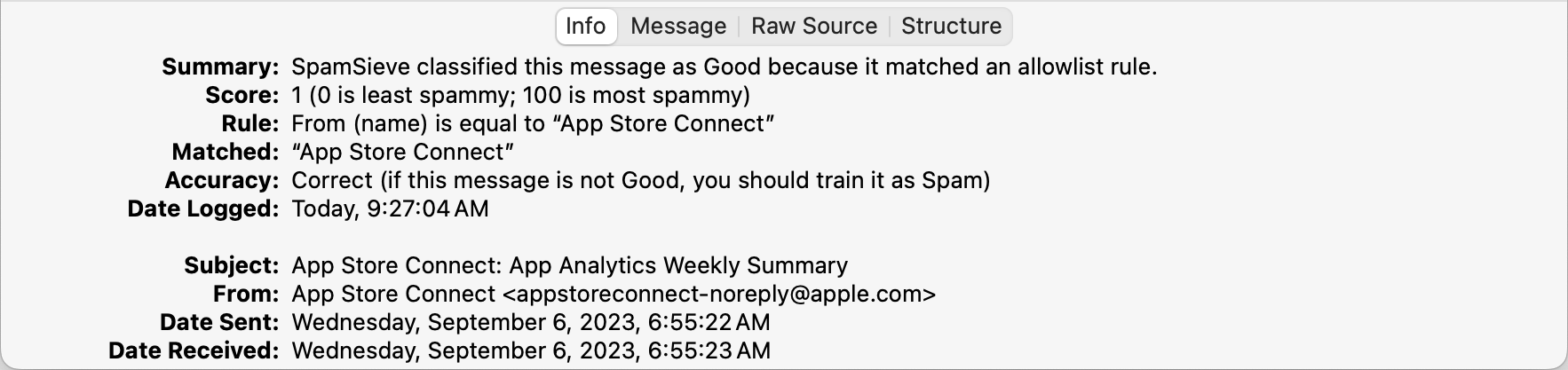
The Info tab shows basic information about the message and what SpamSieve did with it. The Summary and Help sections have advice from SpamSieve about what you might want to do if the message was not processed the way you expected.
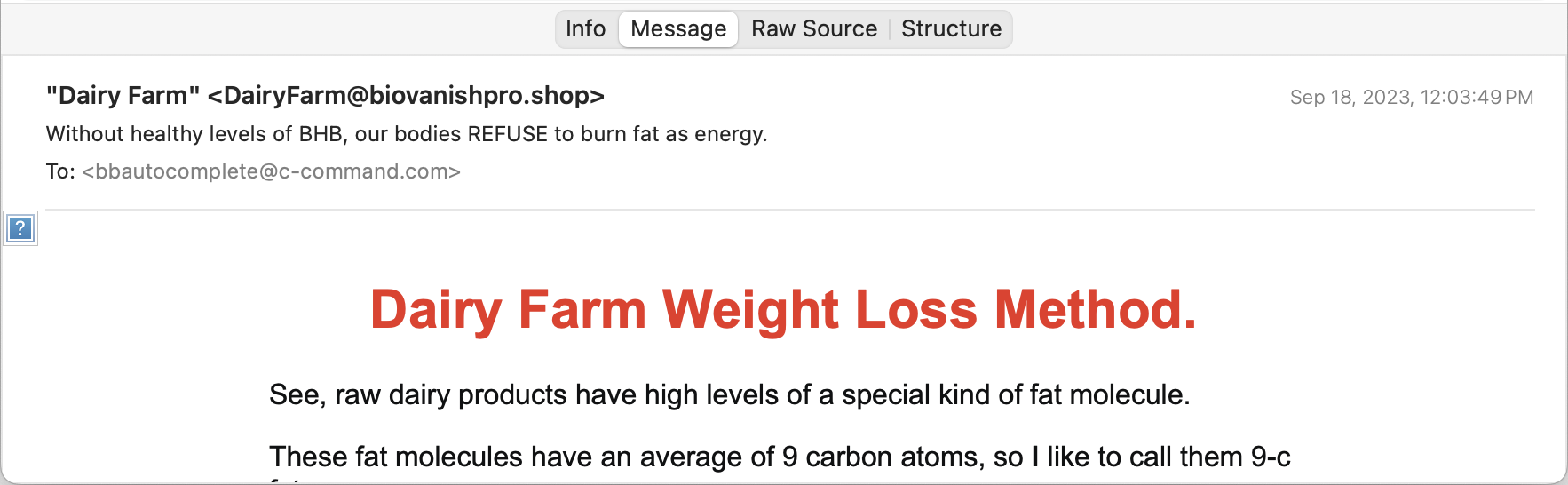
The Message tab shows a preview of the message’s contents. SpamSieve does not load remote images here, so you are protected from Web bugs. You can also use the Open in External Viewer command to open the message in your mail client.
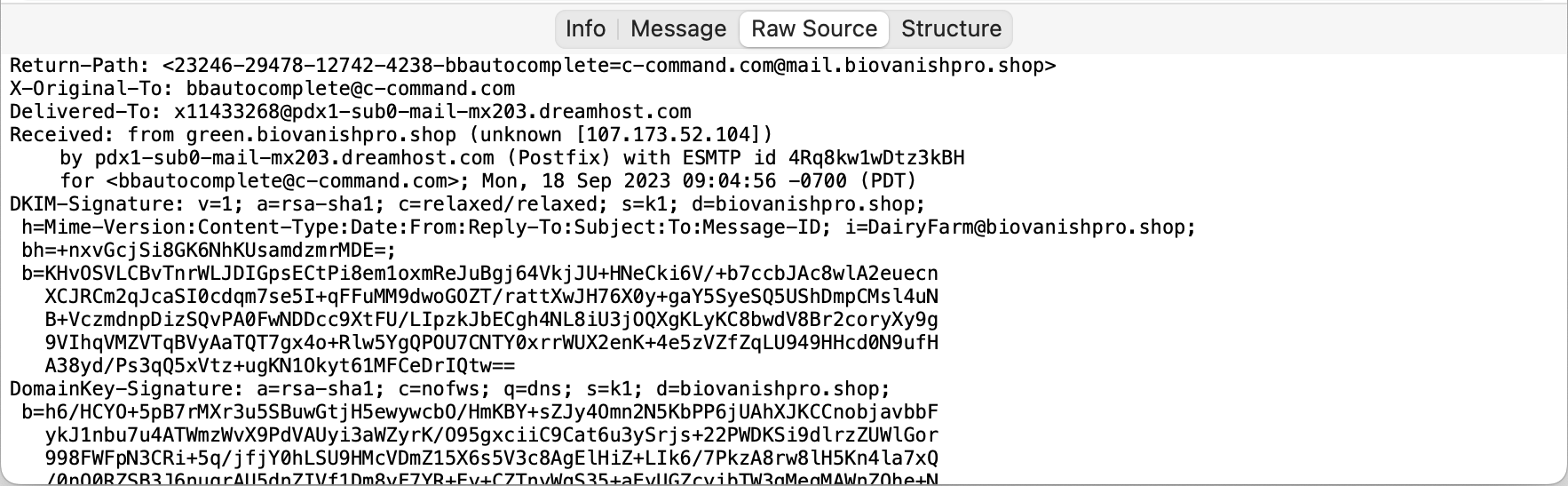
The Raw Source tab shows the message data that SpamSieve received from your mail client. You can export a message’s raw source by dragging the message from the list to the Finder.
The Structure tab shows information about how SpamSieve interpreted the raw source.
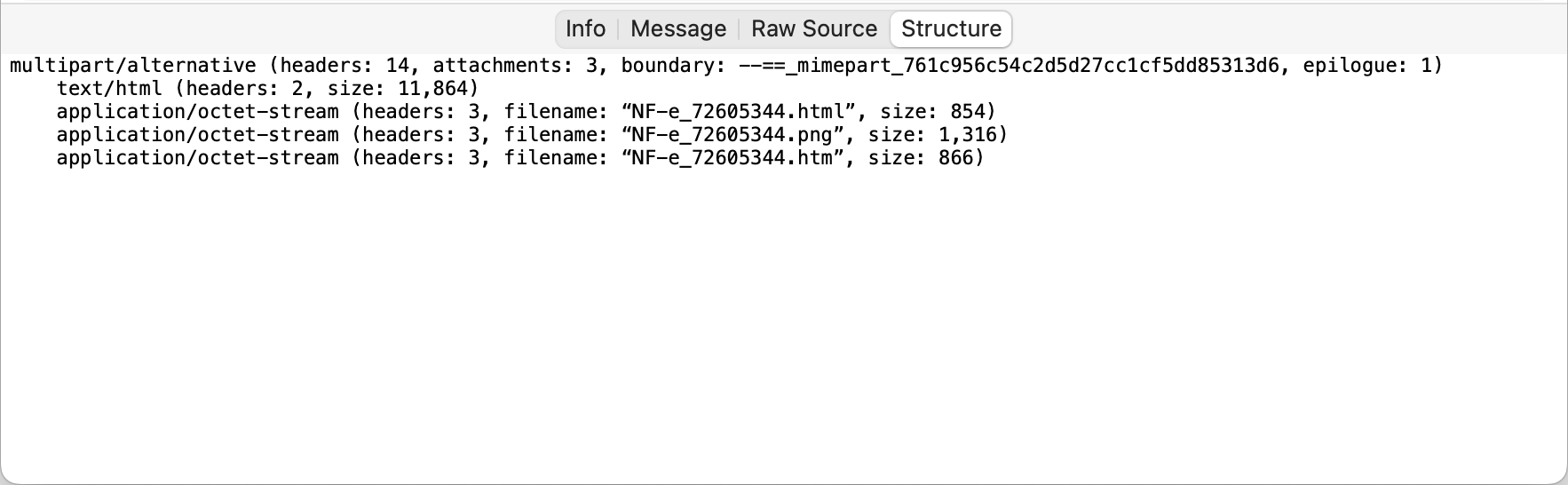
Types of Log Entries
Predicted: Good
This means that SpamSieve examined an incoming message and thought it was good. The Info tab will show why:
A green circle indicates that SpamSieve thinks it correctly predicted the message to be good. If the message is not actually good, you should train it as spam.

An orange cirlce indicates that SpamSieve predicted the message to be good, but then you trained it as spam. In other words, SpamSieve knows that it made a mistake (false negative) and should have caught that message. If spam messages are being predicted as good and you don’t understand why, please see the Sending in an Error Report section.

If there is no Predicted: Good log entry for the message in your inbox, that means that SpamSieve was never given a chance to analyze it. You may want to check the setup of your mail program, as described in the Why is SpamSieve not catching my spam? section.
Predicted: Spam
This means that SpamSieve examined an incoming message and thought it was spam. The Info tab will show why:
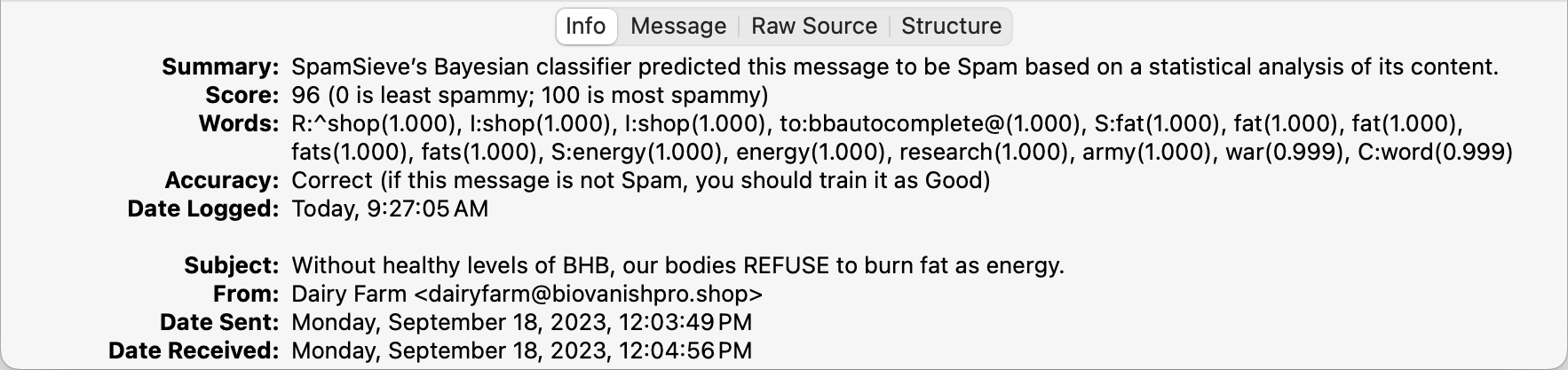
A green circle indicates that SpamSieve thinks it correctly predicted the message to be spam. If the message is not actually spam, you should train it as spam.

A red circle indicates that SpamSieve predicted the message to be spam, but then you trained it as good. In other words, SpamSieve knows that it made a mistake (false positive) and should have left that message alone. If good messages are being predicted as spam and you don’t understand why, please see the Sending in an Error Report section.

If there is no Predicted: Spam log entry for the message in the Junk mailbox, that means it was moved to Junk by something other than SpamSieve. Please see the Why do good messages keep going to the Junk or Spam mailbox? section.
Trained: Good/Spam (Manual)
These log entries represent messages that you had trained as good or spam, either as part of an initial training or when correcting mistakes.
A green book icon means that SpamSieve had not been trained with that message before and that, at the time of training, it did not conflict with a previous prediction that SpamSieve had made for that message, so the training was not correcting a mistake.

See also:
A blue book icon indicates that you had unnecessarily trained SpamSieve a second time with the same message.
An orange book icon means that you had corrected a false negative.
A red book icon means that you had corrected a false positive.
Trained: Good/Spam (Auto)
These log entries represent messages that SpamSieve auto-trained. It’s normal for SpamSieve to auto-train a message as good if it thinks that the message isn’t spam. This will add the sender to the allowlist to ensure that future messages from that sender get through to your inbox. If you later train the message as spam, SpamSieve will disable (uncheck) the allowlist rule. Thus, auto-training should not ordinarily cause problems unless you receive a large flurry of messages from the same sender address, or if you forget to train the message as spam and then the address remains enabled on the allowlist. For more information, see the Auto-train as needed section.
Arrow Icons
An arrow icon after a Predicted log entry means that the same message has been processed multiple times:
A rightward pointing arrow mean superseded. In other words, there was another Prediction for the same message later on.

A two arrows chasing each other mean repeated. In other words, there was an earlier Prediction for the same message.

If you have the Check inboxes for new messages not sent to Mail extension option enabled, SpamSieve will do an extra pass over the inbox in case Mail didn’t send it all the new messages to examine. This can result in SpamSieve processing the same message twice in the event that Mail was working properly, so it would be normal to see two log entries for the same message with these arrows. In other situations, or for messages not in the inbox, each message should only be processed once, so these arrows could indicate that something unexpected happened or that you manually told SpamSieve to reprocess a message.
Compacting the Log
To reduce the amount of disk space that the log uses, see the pruning options in Settings ‣ Storage.