3.2 Library Folders
Outside of EagleFiler, for example when you are browsing in the Finder, each EagleFiler library appears as a library folder with the following structure:
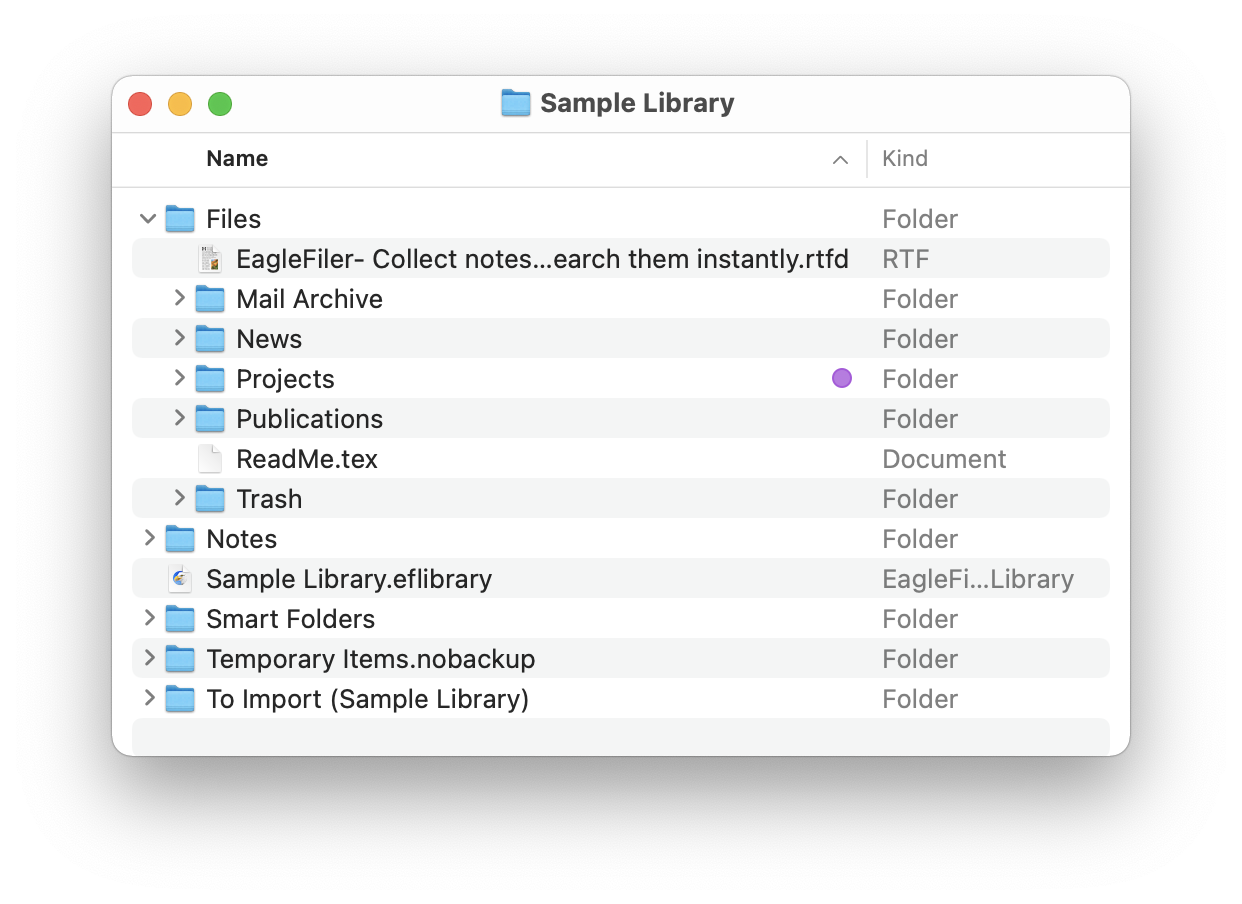
To find your library’s folder, see Where is my EagleFiler library?.
Structure of a Library Folder
- The .eflibrary file is the way that you open the library in EagleFiler. It also holds various information about the contents of the library, such as indexes that EagleFiler uses for searching, as well as tags and other metadata that you’ve added.
- The Files folder contains all the files and folders that have been imported into the library. The folder hierarchy within the Files folder matches that within EagleFiler, so you can easily browse and search the contents of your library from outside of EagleFiler.
- The Notes folder contains one RTF file for each record that has a note. You can edit a record’s notes using the Info inspector. The notes are searchable within EagleFiler and also from Spotlight.
- One way to import files into the library is to move or save them into To Import folder.
- If a file in the To Import folder cannot be imported, EagleFiler moves it to the Unable to Import folder. It is safe to delete files in this folder at any time, if you don’t want to keep them. If there have not been any such errors, this folder will not exist.
- The Smart Folders folder contains a .plist file for each smart folder in the library. You can copy a smart folder from one library to another by copying the associated .plist file. (Make sure that the libraries aren’t open in EagleFiler when you do this.)
Rules for Library Folders
The contents of the library folder are managed by EagleFiler. What this means is that the files and folders are fully accessible to other applications, but there are some limits to the kinds of changes you can make to the library from outside of EagleFiler. These restrictions ensure that the contents of the library folder stay in sync with the .eflibrary, so that EagleFiler knows where all the files are.
You can:
- view and search the contents of the library folder using the Finder, Spotlight, and other applications.
- open files using other applications.
- edit files using other applications and save your changes (without changing the filename).
- add files to the To Import folder.
- add files and folders to the Files folder; EagleFiler will detect them when it does a Scan for New Files.
- change the Finder tags, label, Spotlight comments, and extended attributes of files in the library folder.
- edit folder and file icons using the Finder’s Get Info window.
- store the library folder on a shared volume.
So long as you don’t do it while the library is open in EagleFiler, you can:
- move or rename the library folder in the Finder.
- rename the .eflibrary file in the Finder.
- backup and restore the entire library folder.
You should not:
- open the library in more than one copy of EagleFiler at a time.
- move, rename, or delete files inside the Files or Notes folders.
- modify the .eflibrary file.
- move or rename the library folder’s ancestor folders while the library is open in EagleFiler.
- edit the contents of mailbox files.
- store a library inside another library’s folder.
Recovering a Library
If you inadvertently break the above rules (i.e. move, rename, or delete files from outside of EagleFiler), EagleFiler will notice this when it verifies your library and report some errors. See the instructions in the Verify section of the manual for how to respond to the errors and repair the library. If the changes are difficult to undo, you can instead rebuild the library.
Moving a Library
To move a library, first close it in EagleFiler. Then you can use the Finder to move the entire library folder to the new location.
Renaming a Library
To rename a library, first close it in EagleFiler. Then you can use the Finder to rename the library folder, the .eflibrary file, and the To Import folder to have the new name.
Deleting a Library
If you no longer wish to use one of your libraries, first close it in EagleFiler. Then you can drag the entire library folder in the Finder to the trash in the Dock. This will delete all of the files, as well as EagleFiler’s metadata. To delete an encrypted library, drag the .sparsebundle or .sparseimage file to the trash.
Syncing a Library Locally
It’s fine to use software that copies folders quickly by only copying the files that have changed. An example of this is SuperDuper’s Smart Update feature. Such software works great with EagleFiler because it copies data in only one direction at a time. You end up with the same result as if you’d done a regular copy, but it doesn’t take as long. If you use ChronoSync, be sure that Don’t create empty folders and Ignore invisibles are unchecked.
You should not use software that synchronizes or merges by copying data in both directions at once. This is equivalent to adding/moving/renaming/deleting files, which would violate the above rules, so it would cause the Files and Notes folders to get out of sync with the .eflibrary file.
Sharing a Library
Please see the “Rules for Shared Libraries” in the How can I access my library from multiple Macs? section.
Aliases and Symlinks
You can replace the Files folder with an alias or symlink in order to store the files in your library separately from EagleFiler’s metadata. For example, you might want to store the raw files in Dropbox but not waste space and bandwidth uploading EagleFiler’s index and temporary files. To do this:
- Close the library in EagleFiler.
- Move the library folder to where you want to store EagleFiler’s files.
- Move the Files folder to where you want to store the raw files.
- Make an alias or symlink from the Files folder to its former location next to the .eflibrary file. Make sure that the alias or symlink is called Files.
You can also replace a subfolder of the Files folder with a symlink in order to store only that subfolder on Dropbox. For example, if the subfolder is called EagleFilerDropbox and your EagleFiler library is on the desktop and called EagleFilerLibrary:
In EagleFiler, create an empty folder called EagleFilerDropbox.
Close the library in EagleFiler.
In the Finder, move EagleFilerDropbox from the Files folder to your Dropbox folder.
In Terminal, enter the command:
ln -s ~/Dropbox/EagleFilerDropbox ~/Desktop/EagleFilerLibrary/Files/EagleFilerDropbox